1. Introduction
1.1 Purpose
The Nookal integration allows seamless synchronization between your Measurz app and your Nookal practice management system. With this integration enabled, client records are automatically shared between both platforms, ensuring consistent data and minimizing manual entry. You will also be able to view assessment results collected in the Measurz app directly within your Nookal portal.
1.2 Benefits
Automatic client data synchronization between systems
Centralized access to Measurz results from within Nookal
Reduced administrative effort and data duplication
Improved continuity between assessment and clinical record-keeping
2. Setup Guide
2.1 Generating an API Key (in Nookal)
Log in to your Nookal account at https://www.nookal.com/
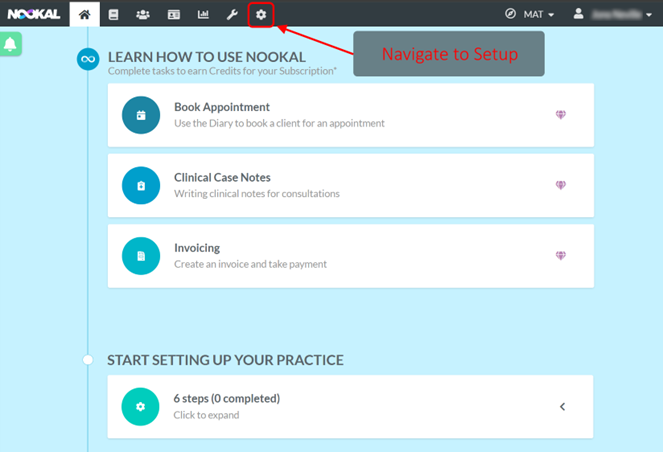
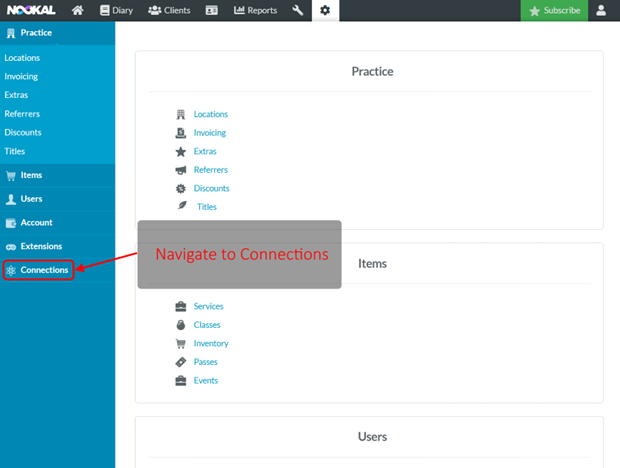
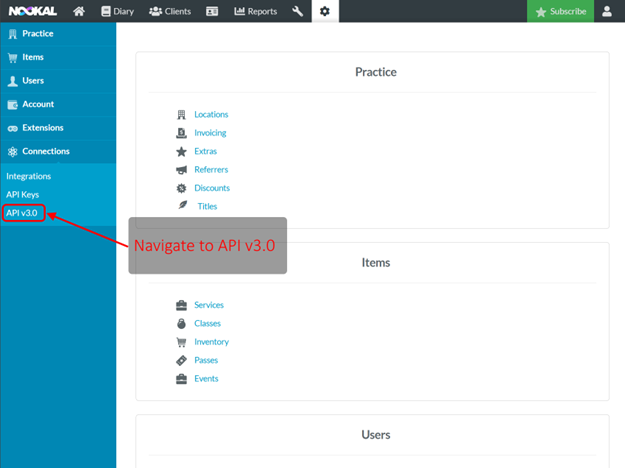
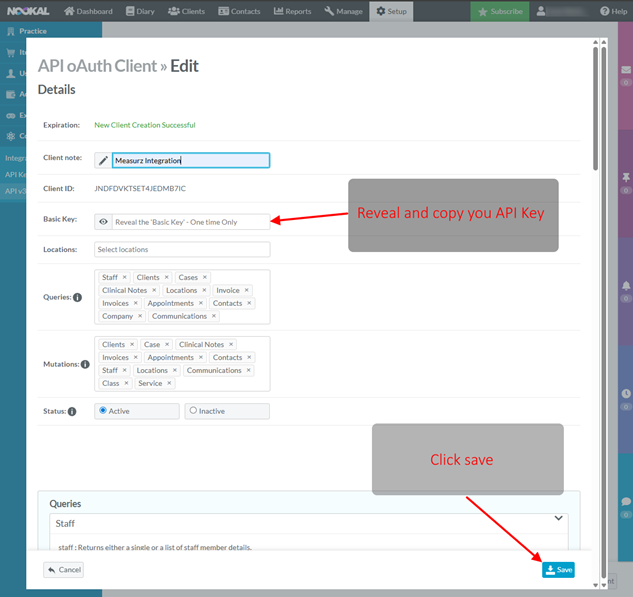
Navigate to Setup → Connections → API V3.0.
Click on the Create New Client button.
Enter a descriptive name such as “Measurz Integration”, in the ‘Client note:’ field.
Select All ‘Queries’ and all ‘Mutations’, and ensure that the status is set to ‘Active’.
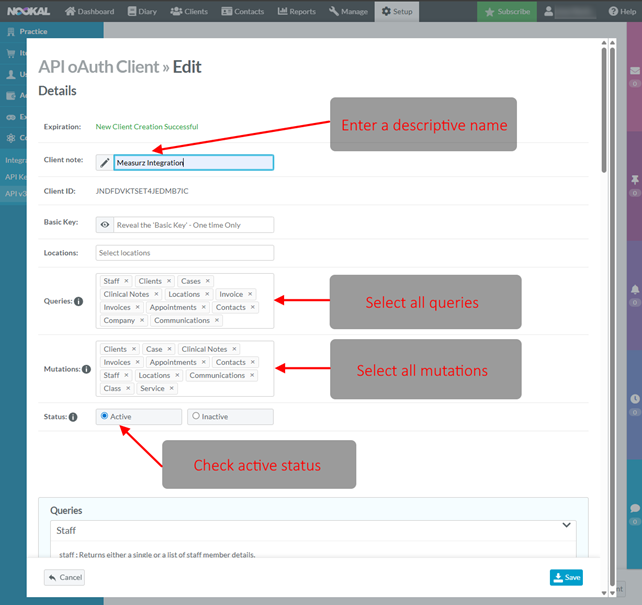
Copy the generated API Key — you will need it in the Measurz app and click save.
Copy the generated API Key — you will need it in the Measurz app and click save.
Tip: Keep your API key secure. Do not share it outside your organization.
2.2 Linking Accounts (in Measurz)
Open the Measurz Web Portal available at https://measurz.matassessment.com/ and login.
Navigate to Integrations page
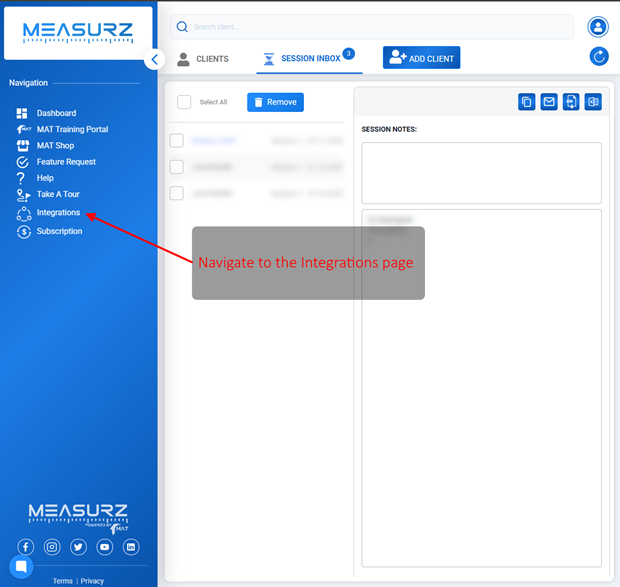
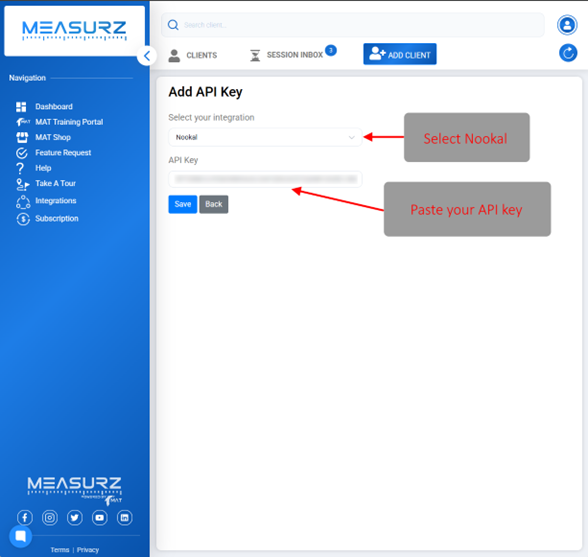
Click on the ‘Add API Key’ button.

Select your integration as ‘Nookal’ and paste your API key generated earlier in the Nookal web portal, into the ‘API Key’ field.
3. Functions
3.1 Initial Client Synchronization
After the integration is enabled, Measurz will automatically retrieve your existing client list from Nookal.
Clients are matched based on name and either email address or date of birth.
If a client exists in both systems, their data will be linked.
If a client exists only in Nookal, they will be created in Measurz.
3.2 Client Creation (Automatic Updates)
New clients added in Nookal are automatically synchronized to Measurz via a scheduled background process (cron job). The synchronization typically runs every 12 hours.
Clients created in Measurz are immediately imported into Nookal.
3.3 Viewing Results
Once clients are linked, results recorded in the Measurz app will appear in Nookal:
Go to a client’s record in Nookal → Client Details → Assessments (Measurz).
Select a session to view test results, jump metrics, or reports generated in Measurz.
Data includes:
Assessment date and time
Test type (e.g., jump test, balance test)
Key metrics and charts
Links to full Measurz reports (PDF or web view)
3.4 Editing Client Information
Updates to client details (name, contact info, date of birth) made in Nookal are automatically reflected in Measurz during the next synchronization.
4. Support
If you encounter issues with the integration setup or data synchronization:
MAT Assessment Support: [email protected]